Installation Guide
The client is packaged as a signed Tizen widget (.wgt). Choose an installation method that matches your TV, computer and installed Samsung development tools.
Method A: Install with Apps2Samsung
Before you start
- Download and run the version of Apps2Samsung for your computer.
- Connect the TV and computer to the same local network. They can use Wi-Fi or Ethernet, as long as they can communicate with each other.
1. Find your computer’s local IP address
The TV needs the IP address of the computer that will run Apps2Samsung. On Windows:
- Press
Win + R, typecmd, and press Enter. - In the Command Prompt, run:
ipconfig - Under the network adapter you are actually using (Wi-Fi or Ethernet), note IPv4 Address, for example
192.168.1.37.
Use the computer’s IPv4 address, not the Default Gateway, the TV’s IP address, 127.0.0.1, or your public Internet address. On macOS, find the active adapter’s address in System Settings → Network; on Linux, run ip addr and look for the inet address on the active network interface. Keep this address handy for the next step.
2. Open the hidden Developer Mode settings on the TV
- Turn on the TV and press Home (or Smart Hub) on the remote.
- Open Apps.
- On newer TV interfaces, move to App Settings (usually a gear icon near the bottom of the Apps screen) and open it. On some older models, you can enter the code while the Apps screen is open.
-
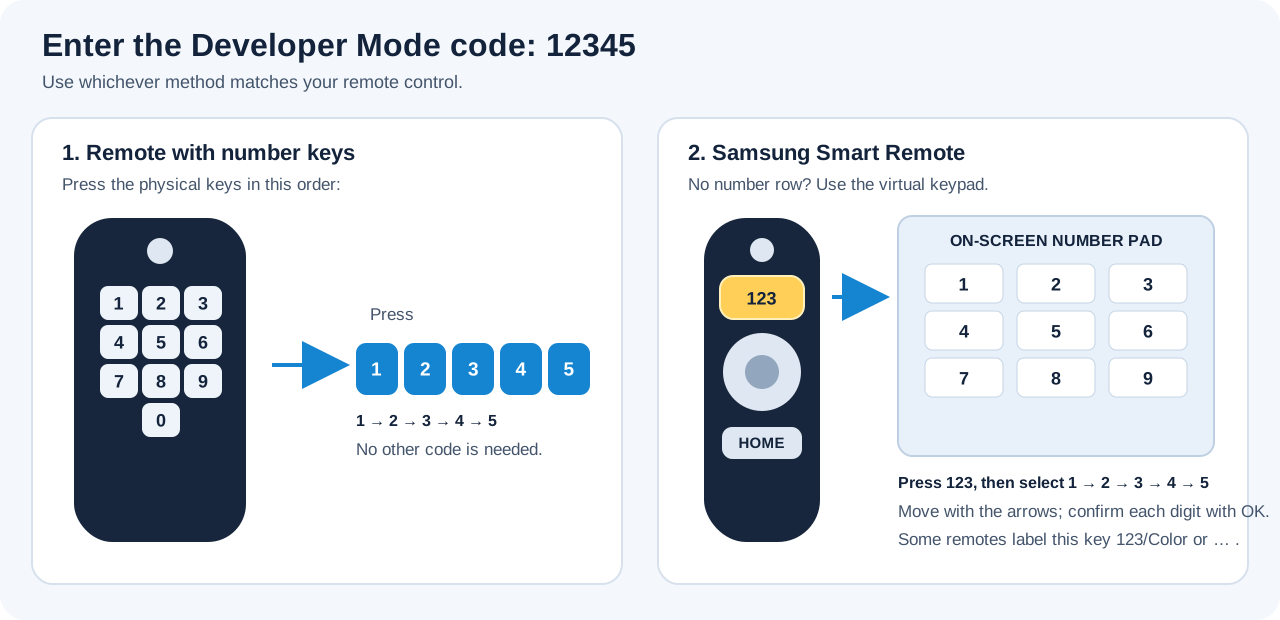
With Apps/App Settings on screen, enter this exact sequence:
1→2→3→4→5How to enter the digits
- Remote with a physical number pad: press the five number keys
1,2,3,4,5in that order. - Samsung Smart Remote without number keys: press the button marked 123 (on some remotes it is labelled 123/Color or uses a … symbol) to show the on-screen number pad. Use the directional ring to highlight each digit and press the centre OK/Select button to enter it. Repeat until you have entered
12345.
The diagram below shows the two input methods. You do not need five physical number keys if your remote uses the on-screen keypad.
- Remote with a physical number pad: press the five number keys
- A Developer Mode dialog should appear. Set Developer Mode to On.
- In Host PC IP (or similarly named field), enter the computer’s IPv4 address from step 1.
- Select OK and accept the TV’s restart prompt.
[!IMPORTANT] This procedure is for Samsung Smart TVs running Tizen. Other manufacturers also use Tizen-based TV platforms, but their menus and support for developer-mode installation may differ.
[!TIP] After restarting, return to Apps. Many Samsung TVs show a Develop Mode indicator near the top of the screen. This confirms that Developer Mode is enabled. For model-specific screenshots, see Samsung’s official TV Device guide; the Apps2Samsung FAQ also explains entering the code with a Smart Remote.
3. Install Moonlight from the Apps2Samsung catalog
- Open Apps2Samsung on your computer.
- Select your TV after it appears in the scan results. If it is not discovered automatically, enter the TV’s IP address manually if that option is available.
- Open the app list catalog and find Moonlight.
- Select Moonlight, then choose the
fidoboy · Enhanced · Dolbyvariant or if your TV model requires it, thefidoboy · Enhanced · Dolby · ForceGMvariant. - Start the installation with
Download & Installand wait for Apps2Samsung to report success. Apps2Samsung downloads and prepares the package itself. - Open the TV’s Apps screen and launch Moonlight.
This is the recommended method. You do not need to visit the GitHub Releases page or download Moonlight.wgt manually. On first use, Apps2Samsung may ask you to sign in to your Samsung account so it can create a signing certificate. Follow its prompts and leave certificate selection on its automatic/default option unless the tool reports that a different certificate type is required. You do not need to configure certificates manually in Seller Office.
[!WARNING] Use manual WGT installation only if the catalog method fails. Download
Moonlight.wgtfrom the latest stable release. In Apps2Samsung, choose Custom WGT / TPK, select the downloaded file, and start the installation. Do not use this fallback unless needed. If you specifically want the ForceGM variant, downloadMoonlight-ForceGM.wgtfrom the same release page instead.
Troubleshooting
- The Developer Mode dialog does not appear: make sure the TV is on the Apps screen, or on App Settings if your model has that panel. Enter
12345there—not in the TV’s normal Settings menu. With a Smart Remote, open the on-screen keypad using its 123 (or equivalent virtual-key) button first. - Apps2Samsung cannot find or connect to the TV: confirm Developer Mode is still on, both devices are on the same local network, and the Host PC IP configured on the TV exactly matches the computer’s current IPv4 address. Guest Wi-Fi or router client isolation can prevent devices from seeing each other.
- It still does not connect after a restart: fully unplug the TV from power, wait 10–15 seconds, reconnect it, and try again. This can help on models where the developer connection has not opened correctly.
- The installation fails because of a signature/certificate mismatch: follow the message shown by Apps2Samsung. If you are moving from the Brightcraft base app, see Moving from the Brightcraft base application below before uninstalling anything.
Method B: Tizen Studio
Tizen Studio is the official Samsung/Tizen development environment and is useful for developers and more involved troubleshooting.
- Install Tizen Studio and the TV tools appropriate for the target Tizen version.
- Enable Developer Mode on the TV and note its IP address.
- In Device Manager, connect to the TV.
- Configure a certificate profile accepted by the TV and sign the WGT as required by Tizen Studio.
- Install the package using the Tizen package/deploy tools or the IDE.
Use Samsung’s current documentation for installing Tizen Studio and setting up TV certificates because those procedures vary by SDK and operating system.
Building the package
The repository’s Development Guide explains how to build the WGT with the included Dockerfile. Docker builds are useful when testing the exact source revision or the two package variants.
Moving from the Brightcraft base application
The independent release series starts at version 1.0.0, while the base application used a higher 1.18.x version. Tizen may therefore reject an in-place downgrade or treat the package signature differently. If installation fails, uninstall the previous application before installing this project. Uninstalling can remove local application data, so note your settings and host details first. See the updating guide for details.
First launch
Start Moonlight from the TV’s Apps screen, allow local-network discovery, then pair it with the host PC. If it does not appear automatically, use Add Host and enter the host IP address or DNS name. See the Quick Start Guide.